
Text
The Fresco text editor uses a tool called CKEditor, which provides a number of tools for formatting text.
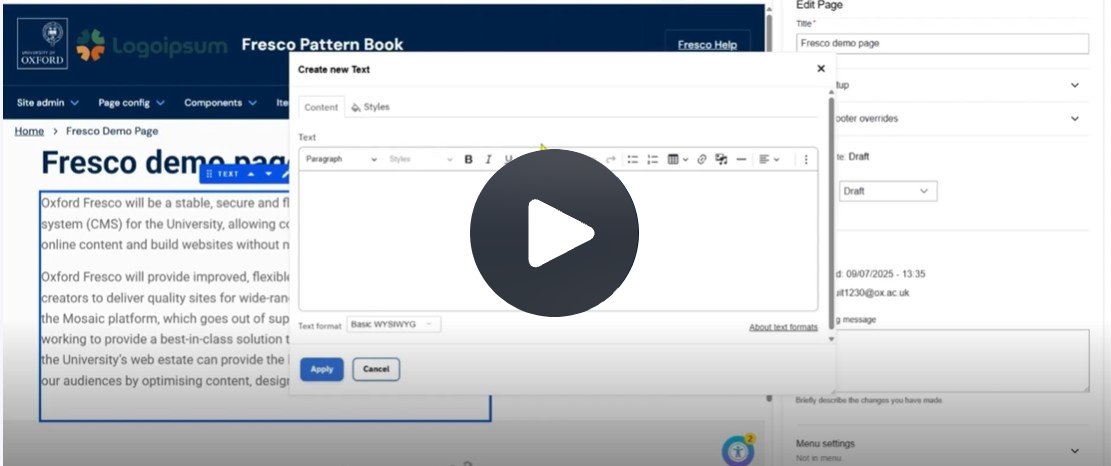
Click Fig. 1 image to view the video on SharePoint Online. Available to users who are logged in to our organisation’s intranet
Adding text to a page
- After opening a page, click the blue plus icon where you want the new text to appear.
- Select ‘Text’ from the pop-up window.
- Add your content in the text window.
- On the 'Styles' tab, set the component width, optional anchor link, and column span.
- Click 'Apply' to add the text to the page.
Copying and pasting text: a warning
If you're copying and pasting text from another source like a document or webpage, always remove any hidden formatting. Copied text often includes invisible styles or code that can interfere with your site's appearance and functionality. To avoid this happening, you can either:
- copy and paste the text, then highlight it and click the ‘Clear formatting’ icon in the edit toolbar
- copy the text and paste it using CTRL + SHIFT + V.
This strips all hidden styling and HTML, leaving plain text which is safe for your site.
Editing and formatting
Styles and formatting can be applied using the options in the edit toolbar:

- Heading and paragraph styles
- Bold / italic
- Subscript / superscript
- Undo / redo
- Lists (bulleted / numbered)
- Tables
- Links
- Media, such as images and documents
- Horizontal line
- Text alignment
Indent in / out
To align text beneath a top-level bullet, add the bullet and use backspace on your keyboard. This deletes the button and leaves the text aligned
Please note:
- Avoid underlining text as it can be mistaken for a link.
- It is not possible to add HTML or edit the source code in the Text component. The advice on the 'About text formats' page is incorrect and will be updated.
Using the component toolbar
Use the toolbar to:

- Move the component up or down the page
- Edit the component settings
- Copy the component
- Delete the component from the page.
Creating accessible content
To make your content easier to read and more accessible to all users, including those using screen readers, follow these key guidelines:
- Write clearly. Use plain English. Avoid jargon and long sentences and paragraphs to improve readability for everyone.
- Structure content well. Use headings (H2, H3, etc.) in logical order, and break up text with bullet or numbered lists to make scanning easier.
- Use descriptive link text. Avoid vague phrases like 'click here' and 'find out more'. Instead describe the action or the link destination - e.g. 'Download the annual report (PDF)'.
For more information:
Changes may have been made to enhance this feature since we last updated this page. See What’s new for the latest release information.
Last updated: 17 July 2026