
Footers
Role: Site Owners, Site Administrators
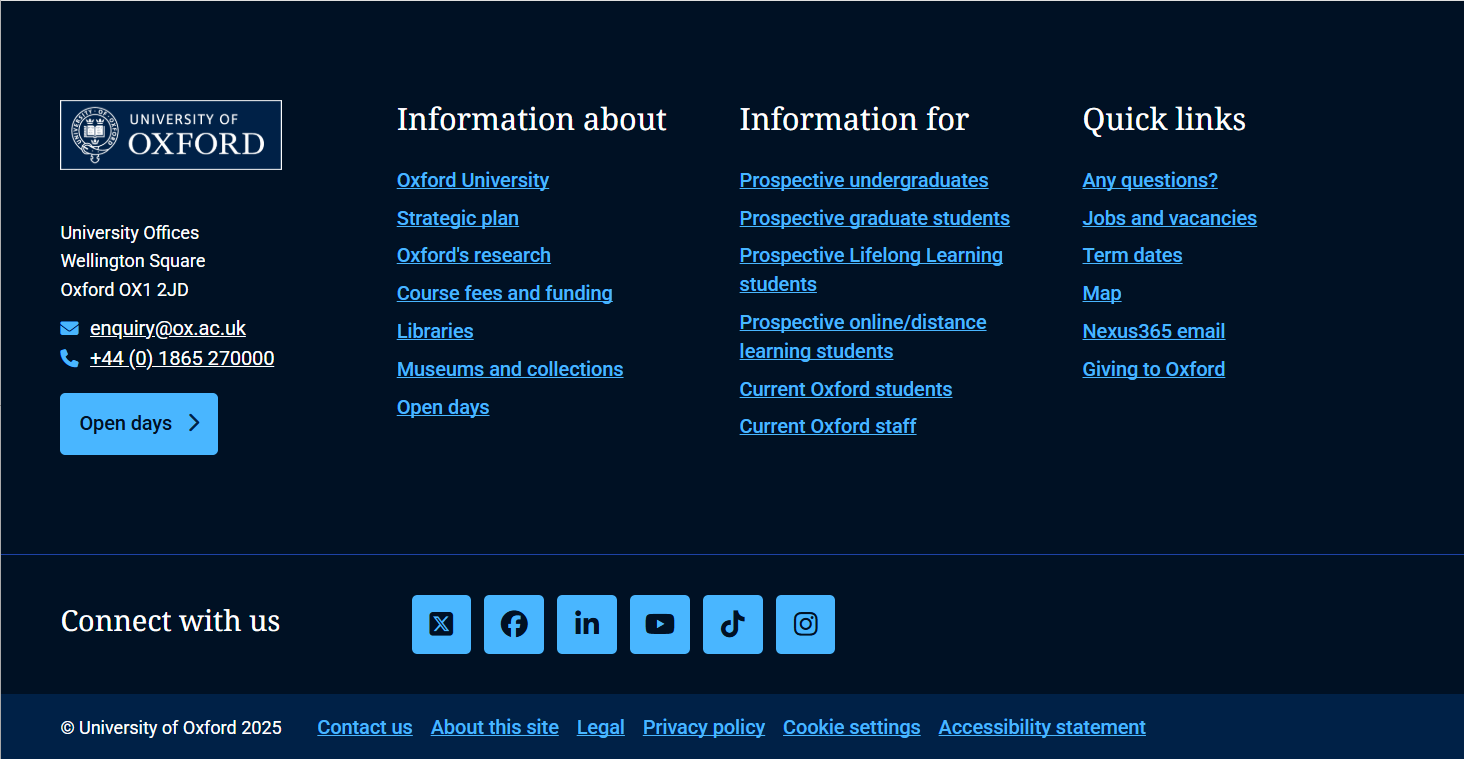
The site footer is a key area for essential information and navigation. You can customise it to meet the specific needs of your site, typically including contact details, legal notices and secondary links. Always ensure that the mandatory compliance links - such as privacy, accessibility and cookies - are accurate and kept up to date.
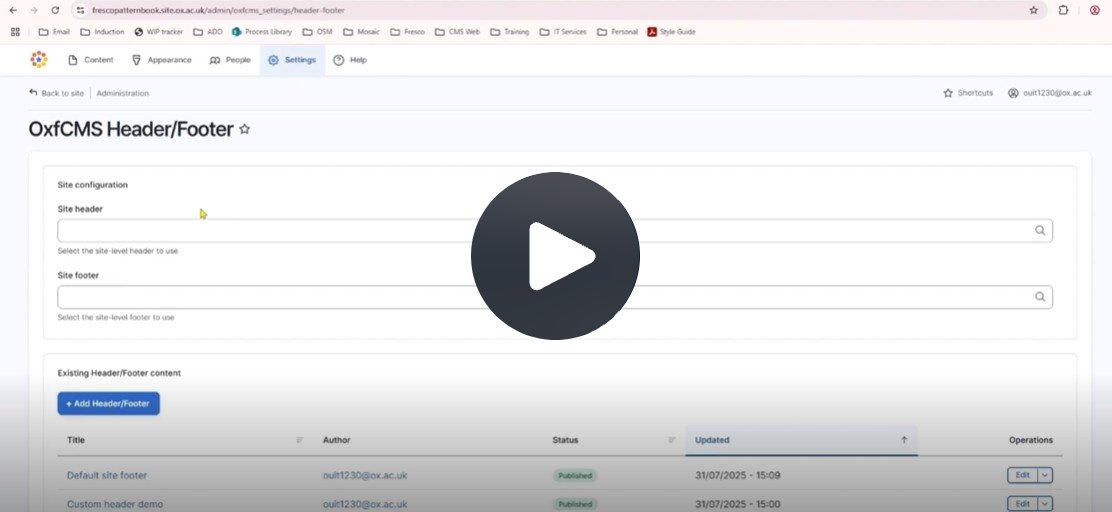
Fig. 1 Still from the video ‘Adding a header and footer to your site’. Video length 1:47
Click Fig. 1 image to view the video on SharePoint Online. Available to users who are logged in to our organisation’s intranet
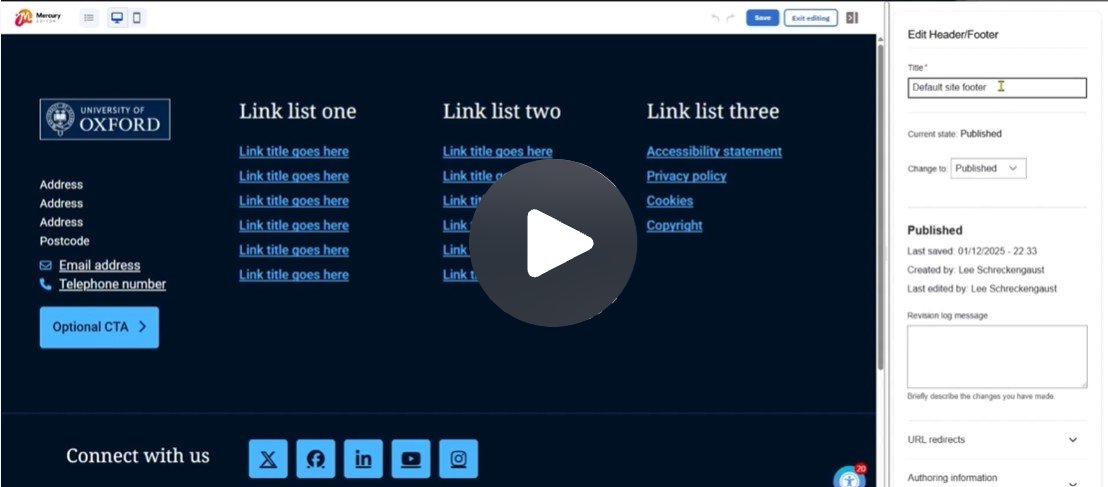
Fig. 2 Still from the video ‘Editing a footer’. Video length 5:50
Click Fig. 2 image to view the video on SharePoint Online. Available to users who are logged in to our organisation's intranet
Finding the settings
- After signing in to Fresco, go to the 'Settings’ tab.
- Select 'Header and Footer’. This will take you to the 'Header/Footer' settings page.
- From here, you can edit the site configuration or existing header/footer content.
Adding a footer to your site
- On the 'Header/Footer' page under site configuration, start typing the name of the footer you want to use in the 'Site footer' box. Typically this will be the 'Default site footer' unless you've created a custom footer.
- Select the footer from the list that appears and click ‘Save configuration’.
- A green status message will appear at the top of the page once your changes are saved.
Editing a footer
- On the 'Header/Footer' page under existing header/footer content, find the footer you need to edit.
- Click 'Edit'.
- In the edit pane:
- Update the 'Title' of the footer (only visible to you)
- Change the status, if required
- Record any changes you've made in the revision log
- Click on the footer in the preview pane and hover over the optional content areas to edit.
- Site logo (image)
- Follow the University’s visual identity guidelines.
- Click ‘Add site logo’, then ‘Add media’ to upload or select an image.
- Edit the additional settings and click 'Apply’.
- Site address
- Click ‘Add address’.
- Add the address in the new window and click ‘Apply’.
- Icons with text
- Click ‘Add icons’ to insert an icon with text and a link.
- In the icon field, type the icon name (e.g. ‘envelope’ for email or ‘phone’ for phone number). See the Font Awesome icon list.
- Enter the text to appear (e.g. email address or phone number).
- Add a link in the 'Icon link' field and click 'Apply’.
- Button
- Click ‘Add a button’ to create a call-to-action (e.g. newsletter sign-up).
- Enter the button text, add a link, and include an optional icon.
- Edit the (optional) additional settings and click ‘Apply’.
- Site links
- Click 'Add site links', then choose 'Heading' or 'Text'.
- Enter your content in the new window and format as required.
- Edit the additional settings and click ‘Apply’.
Social media icons and affiliate logos
Footer with icons or logos
Beneath the main section, there is an area to add social media icons or logos for affiliate organisations, partners or funders.
Hover over the content areas:
- Text
- Click 'Add text' and enter the text to appear (e.g. Connect with us).
- Click 'Apply' to finish.
- Social media icons or affiliate logos
- Click 'Add social media icons or affiliate logos'.
- In the new window, edit the alignment settings and click ‘Apply’.
- Inside the new flexbox, click ‘Add component to flexbox’ and choose from:
- Image - for affiliate logos.
- Icon - for social media icons.
- Follow the icon/image instructions provided above in editing a footer.
- Repeat the process until you’ve added all the required icons or logos.
Footer with icons and logos
If social media icons and affiliate logos are both required, affiliate logos could be added just above or below the footer component using a Tile Grid. These will then appear with the footer on every page.
- Click anywhere on the footer and click 'Add section' (blue plus icon) at the top or bottom of the footer.
- Select 'Tile Grid'.
- In the new window, choose the maximum number of items per row (up to 5) and click 'Apply'.
- In the Tile Grid, click 'Add component to tile grid' and select 'Image'.
- Follow the image instructions provided above in editing a footer.
- Repeat the process until you’ve added all the required logos.
Saving your changes
- When you are done editing, click 'Save' and 'Exit editing' to see a preview of the footer.
Creating a custom footer
It is possible to create a custom footer to override the default site footer. This may be useful if an area of the site requires different branding.
- Go to the 'Settings’ tab and select 'Header and Footer’.
- On the 'Header/Footer' page, click on the blue 'Add Header/Footer' button. This will take you to a 'Create Header/Footer' window.
- In the edit pane, add a name for your footer in the 'Title' field.
- In the preview pane, click the blue plus icon and select 'Footer'. Click 'Apply'.
- Click on the footer in the preview pane and hover over each component element to add content. Follow the advice above on editing a footer.
Changes may have been made to enhance this feature since we last updated this page. See What’s new for the latest release information.
Last updated: 17 July 2026
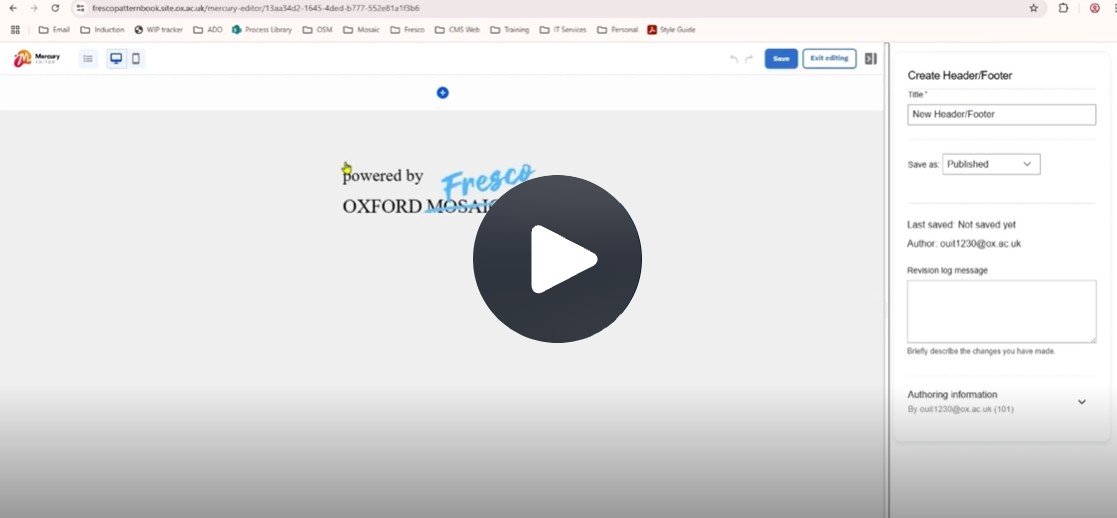
Fig. 3 Still from the video ‘Creating a custom header and footer’. Video length 3:17
Click Fig. 3 image to view the video on SharePoint Online. Available to users who are logged in to our organisation's intranet