
Add files to the Media Library
The media library is where you store and manage images and files for your site.
Adding items to the media library means they can be reused across multiple pages without uploading them each time. This helps keep your content consistent, reduces duplication, and avoids unnecessary storage issues.
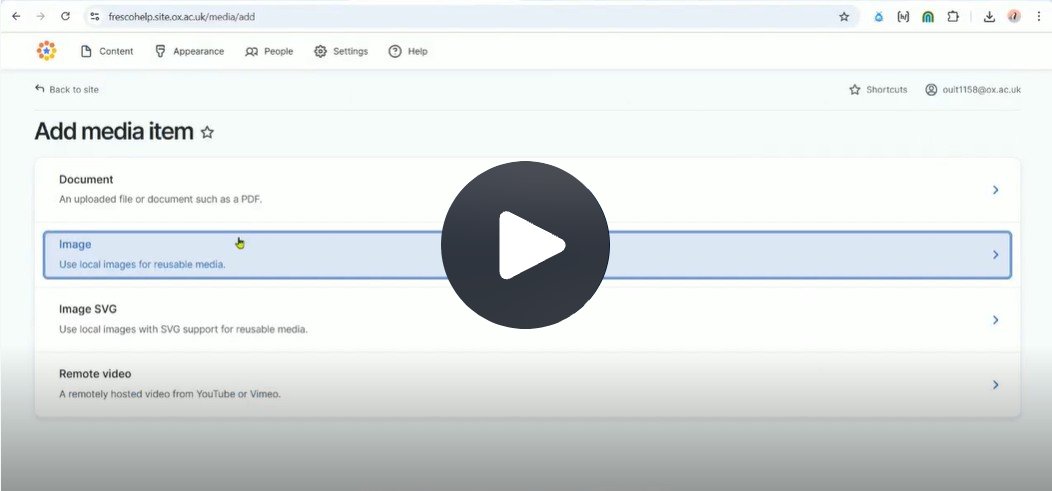
Click Fig. 1 image to view the video on SharePoint Online. Available to users who are logged in to our organisation’s intranet
Step-by-step instructions
- Go to "Content" on the top ribbon and click on the Media tab. Alternatively, open the Media Library by adding an image component during editing.
- Click Add media.
- Choose the type of media
- Select Image (for photos, graphics, logos, etc.) or File (for documents such as PDFs, Word files, etc.).
- Upload the file
- Click Choose file or drag and drop your file into the upload area.
- Add details
- For images, add a clear alternative text (alt text) describing the content of the image (important for accessibility).
- For files, give the file a descriptive name or title so editors and visitors can easily identify it.
- Optionally, you can add tags or categories if available, to make searching easier.
- Save
- Click Save to add the item to the media library.
- Use in content
- When editing a page, you can now select your file or image directly from the media library without re-uploading.
Accessibility
- All images and videos should have alt text or descriptive labels
- Use clear and simple file names that explain the content
- Avoid uploading media with important information as text baked into the image – use real text instead
- Add captions or transcripts for all videos
- Make sure media can be accessed with keyboard only
- Use high contrast thumbnails and avoid flashing or flickering content
- Don’t rely on colour alone to show meaning
- Check that any downloadable media is in an accessible format (e.g. tagged PDFs)