
Buttons
Role: All editing roles
Buttons are typically used for a key action you want users to take – also known as a call-to-action. They are a good way to draw attention to the action. For example, this could be registering for an event, signing up for a newsletter, or giving feedback.
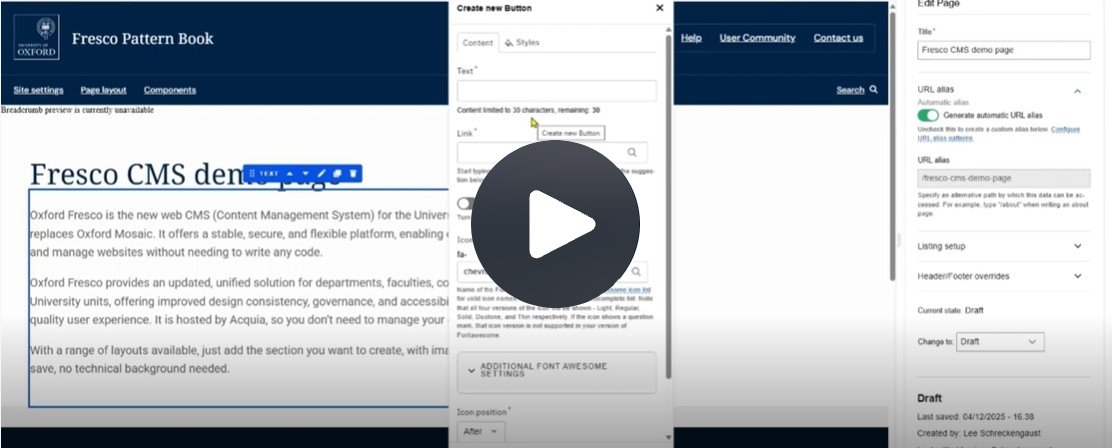
Fig. 1 Still from the video ‘Creating and editing buttons’. Video length 4:13
Click Fig. 1 image to view the video on SharePoint Online. Available to users who are logged in to our organisation’s intranet
On this page
Related information
Adding a button to a page
- After signing in, find the page you want to edit and click 'Edit' to open a draft
- Locate the spot where you want the button and click the blue plus icon
- In the new window, select 'Button'
- In the 'Create new button' window:
- Enter the button text
- If you have more than one button on a page:
- To be accessible, button text must be unique to each target page
- Overwrite any default text such as 'Read more' to describe the link target in a meaningful way
- Add a link (start typing to search for a page on the site or paste a URL)
- Leave other settings as they are for now
- Click 'Apply' to insert the button on the page
Editing a button
Click the button to open the edit pane
On the 'Content' tab, you can:
- Edit the button text
- Edit the link
- Hide text so only the icon appears
- Change the icon (this defaults to a chevron):
- Remove the old name and start typing for autocomplete
- If unsure of the name, use the link to the Font Awesome icon list to search or browse. The icon name appears alongside each icon in the list
- Explore 'Additional Font Awesome Settings' for icon styling options (see the icons page for details)
- Set the icon position (before or after text)
- Set the link to open in a new window. For accessibility reasons, this is not recommended unless linking to an external site
- On the 'Styles' tab, add an optional anchor link if required
- Click ‘Save’ and then ‘Exit editing’ to apply changes
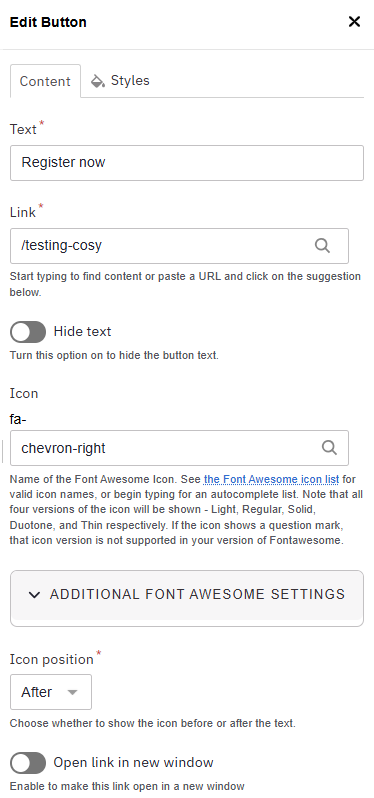
Edit button screenshot
Using the component toolbar
You can make further changes by using the component toolbar

Click on the button to display the toolbar above it. From the toolbar, you can:
- Move the button up or down using the move icon or arrows
- Edit the button by clicking the pencil icon
- Copy the button
- Delete the button using the bin icon
Changes may have been made to enhance this feature since we last updated this page. See What’s new for the latest release information.
Last updated: 17 July 2026