
Site colour theme
Role: Site Administrator
Learn how to customise your site's colour theme using the Appearance settings. The styling options available depend on your site's assigned styling group. Fresco includes built-in accessibility checks to help you choose colour combinations that provide sufficient contrast and meet Web Content Accessibility Guidelines (WCAG) standards.
Getting started
Colours
Your site's theme consists of Colours and Fonts. The Colours section controls the colours used throughout your site and is divided into the following areas (Fig. 1):
- Header & Footer
- Header
- Footer
- Main Content
- Base colours
- Used by ordinary page content, cards and supporting panels
- Secondary Colours
- Used by highlighted or contrasting sections added to the page
- When editing a column select 'Styles' and then select 'Secondary' under 'Theme Colour Context' to apply Secondary Colours
- Base colours
- Feature Content
- Hero and banner areas that require distinct visual identity
Within each of these sections, a number of colour options exist:
- Background
- Used behind the main regions of the element
- Foregrounds
- Used for text, links, icons and small accents
- Ribbon
- Used by slim ribbon areas within the element
- Action
- Used for buttons placed inside highlighted or contrasting sections
How to edit
Review colours
- Check existing colour choices are appropriate
- Optional: choose alternative colours
How to use the colour picker is explained on the choosing a colour documentation
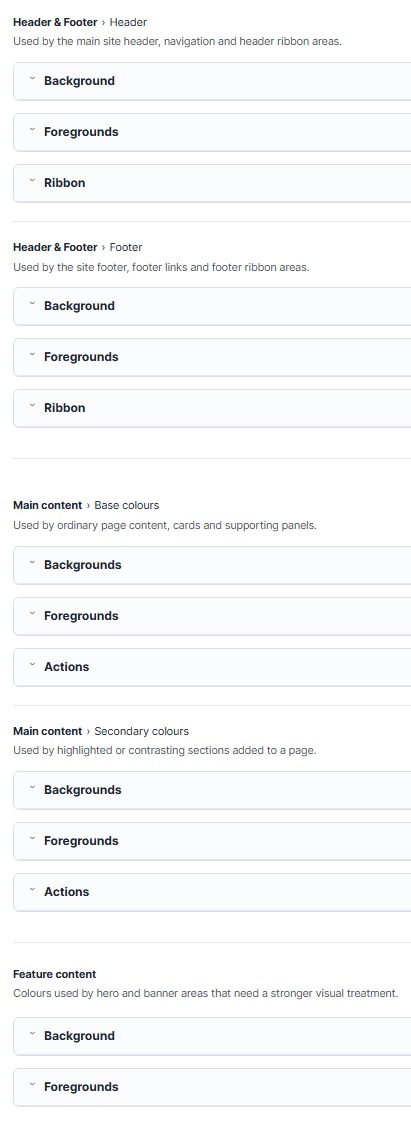
Fig. 1 Listed colour sections of a site
Previews and Publishing
If you are making significant changes to your site's colour theme, it is recommended that you use the Preview feature before publishing your changes. This allows you to review your new colour scheme across your site without affecting the live version.
- After making a change to a colour, select who should be able to view the preview:
- Just me: only you can view the preview
- Any logged in user: all logged in users can view the preview
Select View preview to enable the preview (Fig. 2)
Browse your site to see how your changes will appear on different pages and components
- Select Publish theme changes (Fig. 2) to apply your new colour theme across the site
- Changes become visible to all users and replace the previously published theme
If you decide not to keep the preview:
- Disable preview: stops the preview and returns users to the published version of the site
- Revert in progress changes (Fig. 2): discards all unpublished changes and restores the theme to its currently published state
- Reset theme to Fresco default (Fig. 2): resets all theme settings to the default Fresco colour scheme, allowing you to start again from a clean baseline
Changes may have been made to enhance this feature since we last updated this page. See What’s new for the latest release information.
Last updated: 10 July 2026
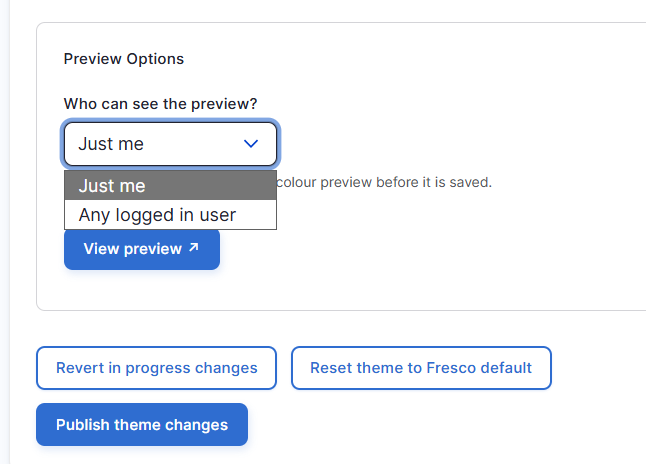
Fig. 2 Drop-down menu for site colour preview