
Add an event
Role: All editing roles
Before you can create an events listing, you have to create each individual event page and populate the Listings metadata to meet your needs. You may also need to add content to the page.
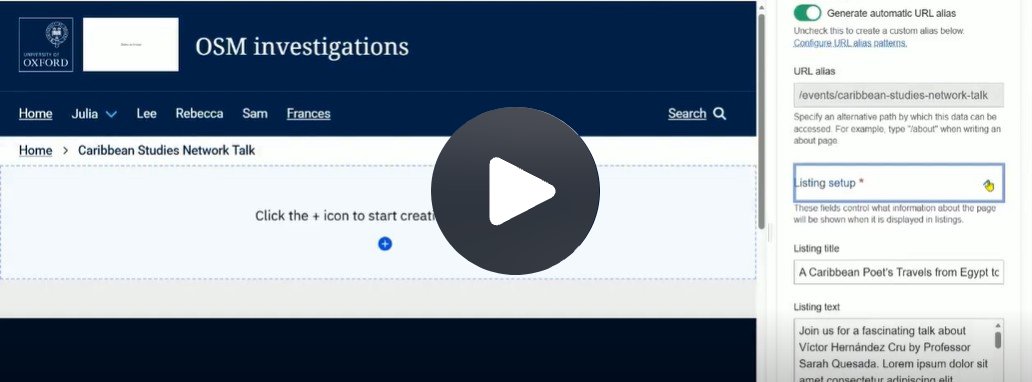
Fig. 1 Still from the video ‘Add and edit an event’. Video length 2:53
Click Fig. 1 image to view the video on SharePoint Online. Available to users who are logged in to our organisation’s intranet
0:00
Before you can create an event listing for your site, you need to create each individual event page.
0:09
You begin in the content area and select Add Content.
0:15
Then you choose the event content type.
0:21
This will open a new page for you to begin adding the event details.
0:28
This is one I created previously.
0:32
In the edit pane you'll see there's Listing set-up metadata.
0:37
Here you add your listing title, some listing text, a listing image, a listing button for the text and link, and also a listing link.
0:56
You'll notice there's no detail on the page itself.
1:01
When this appears in a listing, it will only use the links and information in the metadata.
1:10
Let's look at how this would appear in a dynamic listing.
1:17
The one on the left only uses the metadata information.
1:23
You'll see that the listing text makes it quite a long card and difficult to read and display.
1:33
The one on the right will link through to a separate event page and just contains a teaser amount of information in the listing text.
1:47
This is how I've edited my original event page.
1:51
Now you can see there's an image and text which will appear on the page itself.
1:58
What I've changed is in the listing metadata. I've added a shorter listing text and I've changed the listing link so that now it will link to the event page itself.
2:21
So now we go back to our listing and you can see if I hover over the shortened listing text it would go through to the main page for the event.
2:33
If I go down to register for event, it uses the button link which goes to Eventbrite.
2:41
So let's select to go through to the main event page and there you can see the information we added previously.
Get started
Create an event page
- Go to the Content area and select Add content
- Choose Event from the list of content types
- A new event page opens where you can begin adding event details
Decide how to use the event listing
An event listing can appear in two different ways:
- It either links to a separate page which provides full details about the event
- Or it links to another URL, such as a booking site
- The event listing only displays information from an individual event page's listing metadata
- There is no page content on the individual event page you create
Add content to the event page (optional)
- Edit the event page to update the listing metadata to:
- Shorten the listing text
- Set the listing link to the event page itself
- Add a full event description including, as required:
- Visual display components
- Metadata component
Usage advice
- Long listing text creates large cards that are harder to scan
- Use a short, teaser-style listing text for better readability
- Link the listing to a separate event page for full details
Changes may have been made to enhance this feature since we last updated this page. See What’s new for the latest release information.
Last updated: 17 July 2026