
Hero layout component
Role: All editing roles
The Hero elevates your page design by delivering essential information with maximum impact. Hero elements are context-aware, adapted for use with each content type.
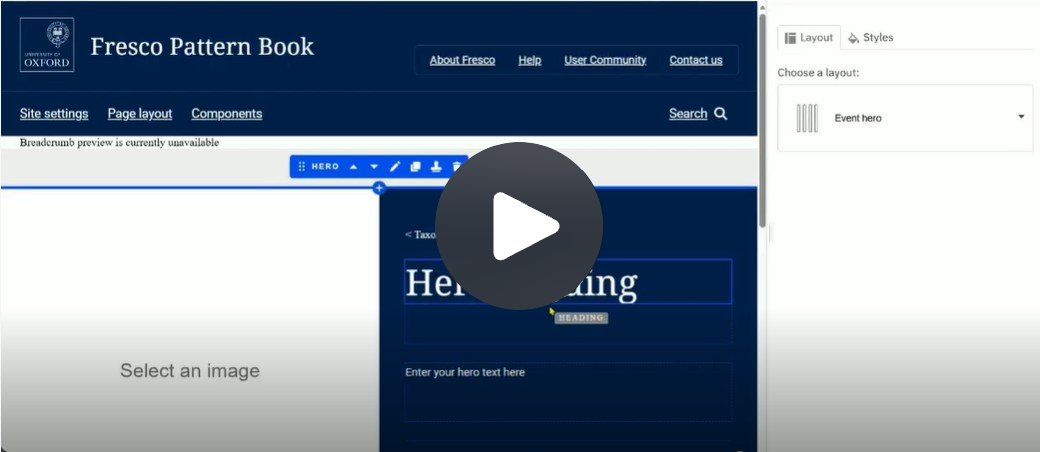
Fig. 1 Still from the video ‘Add an Event Hero’. Video length 5:37
Click Fig. 1 image to view the video on SharePoint Online. Available to users who are logged in to our organisation’s intranet
0:00
Start by adding a section, Scroll down to Full width components and select Hero.
0:10
This automatically displays the correct layout for the content type you are using.
0:16
In this example, I'm creating an event page, so it's using an event Hero.
0:24
When you select the Hero, it displays options in the Edit Pane.
0:29
The Styles tab gives you the opportunity to change the placement of the image from default left to right.
0:38
I'm going to change it back again.
0:46
Begin by adding information under Details in the Edit pane.
1:07
Making sure that your end date and time are after your start date and time.
1:15
The Location is the building or venue name.
1:28
The URL field could link to a separate location page you've already created for the venue.
1:35
This is helpful if you regularly hold events in the same place.
1:41
Or it could link to a registration site such as Eventbrite, or to the website of the venue which is hosting your event.
1:56
I'm going to use an Eventbrite link.
2:07
The Link text is the display wording for the URL you have chosen.
2:19
Then you add the contact details for your event and the event presenter.
2:58
You may also wish to add some taxonomy terms.
3:04
This might be useful if your event belongs to a series and Save.
3:17
Now you can see the metadata automatically displays on the Hero.
3:24
Next, begin editing the Hero elements, click Select an image and Add Media via the Edit Pane.
3:48
Add a heading, overwriting the default text and change the heading level as appropriate.
4:07
Then add a short description of your event.
4:22
There's an optional additional text field.
4:26
If you don't need this, delete the default text.
4:36
if you change your mind, when you click on the Hero and hover over the bordered element, you'll see a labelled text field called Plain Text.
4:45
Click within this and then you can add the text in the Edit Pane.
4:52
Please note the taxonomy terms don't display in Page Preview.
5:08
It looks like the image didn't insert on that occasion, so let's just repeat that. And Save and Exit and now you can see your Hero displayed on your finished page, complete with the taxonomy terms.
Related information
How to edit
Get started
- Add a new section to your page
- Scroll to 'Full width components' and select Hero
- The Hero layout automatically matches the content type (for example, an Event hero for an event page)
- Select the Hero to display tabbed options in the Edit Pane:
- Styles tab: change the image placement from default left to right, top to bottom, as desired
- Alternatively, you can add the Hero after completing the Details section in the Edit Pane. The Hero automatically populates with the information
Add metadata
- Add information under Details in the Edit Pane
- Fields will be different depending on the content type you are working on
- Add Taxonomy terms (optional)
- Note that Taxonomy terms do not appear on the Page Preview
Edit Hero content
- Click 'Select an image'
- Add an image using Add Media in the Edit Pane
- Replace the default heading text and adjust the heading level, if needed
- Add a short description of the event
- Either overwrite the default text in the optional 'additional text' field or delete it
- To reinstate the additional text field:
- Select the Hero and hover over the empty bordered element to display a Plain Text labelled field
- Select the field and enter your text in the Edit Pane
Usage advice
A Hero is created on the page it is promoting. For example, a main Events page could have a listing component which contains a listing item linking to:
- A conference page which has a Hero Event to promote the key details. The rest of the page contains the schedule, presenter bios, abstracts, etc
- A lecture series page which has a Hero Event to promote the aims of the series or the first lecture in the series (especially an inaugural lecture). The rest of the page contains information about each lecture or a listing of the other lectures in the series
Changes may have been made to enhance this feature since we last updated this page. See What’s new for the latest release information.
Last updated: 31 July 2026