
Add a page
This guide shows you how to add a new page in Fresco: where to start, how to choose a page type, and how to save your page once you've added your content.
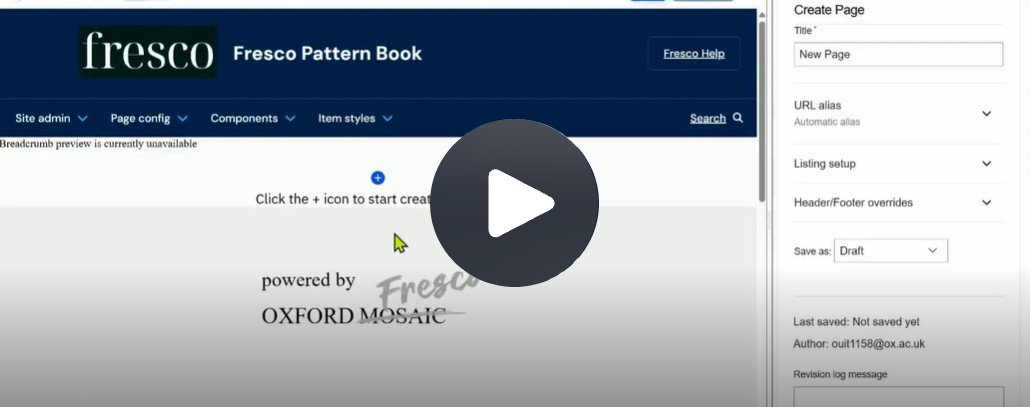
Click Fig. 1 image to view the video on SharePoint Online. Available to users who are logged in to our organisation’s intranet
Step-by-step instructions
- Sign into your Oxford Fresco site
- Go to "Content" on the top ribbon
- Click the "Add Content" button
- Choose from the list of available content types:
- Article
- A page type representing a timed piece of information such as a blog post or news item
- Event
- Page can be added to a listing
- Location
- For example, a page containing information about a regular venue you use for an event
- Page
- Generic content
- Person
- Page can be added to a listing
- Article
- A draft new page will open, ready for you to add content
Rename your page
- Change the default title "New page" to something more meaningful
- Save the page using the "Save" button on the top ribbon
- Pages are saved as drafts by default
Add content to your page
- Begin to add content to your draft page
- Save regularly
- Optionally add 'Listing text'
Text is used by the Page Title 'Description' Metatag
A short summary of the page’s content, typically between 50-160 characters. It provides context for search engines and may be shown in search results.
- Optionally exclude from search engines
- Metatags > Advanced > robots
- Optionally exclude from internal site search
- If you're not ready to add content, use the "Exit editing" button on the top ribbon
- View how the draft page will look when published
Ready to edit? How to find your page
- Go to "Content" to see your new page at the top of the list with a status of "unpublished"
- When you're ready to add content, use the "Edit" button in the Operations column to return to your draft page
Related information
Changes may have been made to enhance this feature since we last updated this page. See What’s new for the latest release information.
Last updated: 17 July 2026