
Tile Grid
Role: All editing roles
A Tile Grid is a flexible layout option that enables editors to present content in a clean, organised and visually appealing way. It uses a pre-defined grid structure to arrange items into rows and columns, which automatically adapt to different screen sizes for a responsive and accessible user experience.
Tile Grids are ideal for creating layouts that look structured and professional without requiring complex design work. Some common use cases include:
- Cards, e.g. showcasing multiple content types such as news, articles or events
- Images, e.g. arranged in a row or a logo wall
- Icons, e.g. displaying a row of social media links.
On this page
Related information
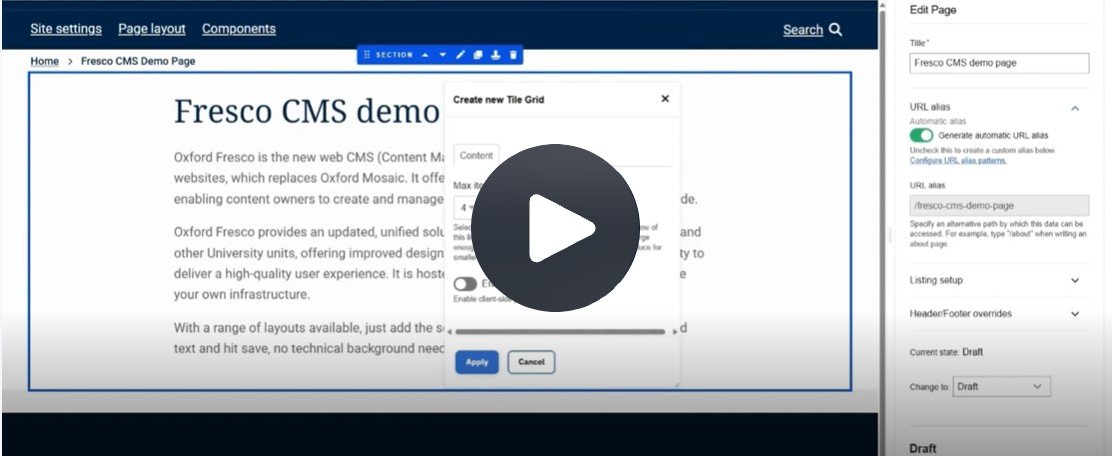
Fig. 1 Still from the video ‘How to create and edit a Tile Grid’. Video length 3:59
Click Fig. 1 image to view the video on SharePoint Online. Available to users who are logged in to our organisation’s intranet
Adding a grid to a page
A Tile Grid can be added as:
- a standalone section on a page, or
- a component within a Column, Accordion or Tabs.
To add a Tile Grid to a page:
- After signing in, open the page you want to edit.
- Locate the spot where you want the Tile Grid to appear and click the blue plus icon to add a new section or component.
- In the new window, select Tile Grid from the list.
- In the next window, edit these settings:
- Maximum number of items to display in each row.
- Enable pagination - toggle ‘on’ if required
- Items per page – if pagination is on, select the number of items per page.
- Click 'Apply'. An empty grid will now appear on the page. Please note, it will not look like a grid until the first components are added.
A Tile Grid must be built manually by adding components one at a time.
- Add your first component. Hover over the empty grid and click the blue plus icon to add a component.
- Choose your preferred component from the list below. For editing guidance on each component, follow the links provided in the interface.
- Edit the component, using the edit pane to add all the necessary information.
- Repeat the process. Add another component to the grid. Continue until all required components are in place.
- Edit each tile so that all your content appears correctly.
For the best results:
- Keep your tile layout consistent.
- Make sure headings and text are roughly the same length for a balanced appearance.
Visit the Fresco Pattern Book for examples and inspiration.
Editing a grid
You can edit items in a Tile Grid:
- Reorder items using the drag handles to move components within the grid.
- Update an item by clicking the tile and editing its content in the edit pane.
- Copy an item by selecting the copy icon.
- Remove an item by hovering over the tile and clicking the delete icon.
Use the Tile Grid component toolbar to:
Image

- move the Tile Grid up or down the page
- edit the component settings
- copy the component
- save the Tile Grid as a reusable template to use elsewhere on your site
- delete the grid from the page.
Changes may have been made to enhance this feature since we last updated this page. See What’s new for the latest release information.
Last updated: 17 July 2026