
How to copy a page
Role: All editing roles
Use the replicate option to copy a page (published or draft content).
Related information
How to copy
Starting from a page
- Exit a page
- Select Replicate on the page toolbar (Fig. 1)

Fig. 1 page toolbar
- The new page title is prefilled with the original page title and identified as a copy (Fig. 2)
- Overwrite the prefilled text
- Select Replicate
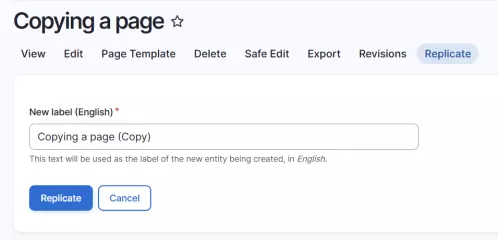
Fig. 2 prefilled page title for replicated page
Starting from the Content list
- Select the item you want to copy
- Expand the drop-down menu in the Operations column to select Replicate (Fig.3)
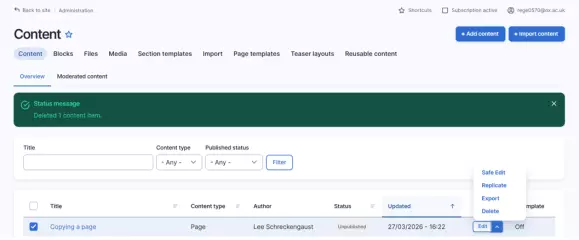
Fig. 3 replicating from the Content list
Changes may have been made to enhance this feature since we last updated this page. See What’s new for the latest release information.
Last updated: 27 March 2026