
Video
Role: All editing roles
Use the video component to embed YouTube or Vimeo content on your site without increasing your site storage.
Related information
How to edit
Getting started
- Add a Section
- Add Columns, for example
- Add component > select Video
Click Add Media (Fig. 1)
Image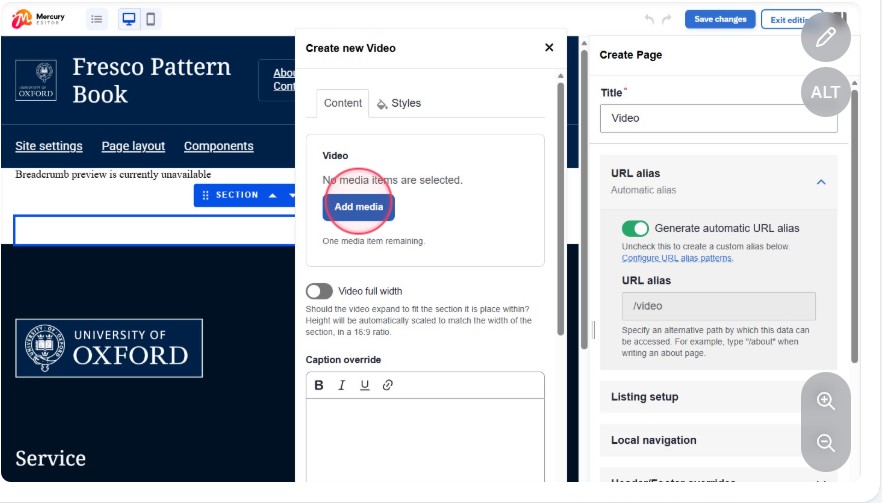 Fig. 1 Add media button
Paste the URL into the Add Remote video via URL field and click Add (Fig. 2)
Image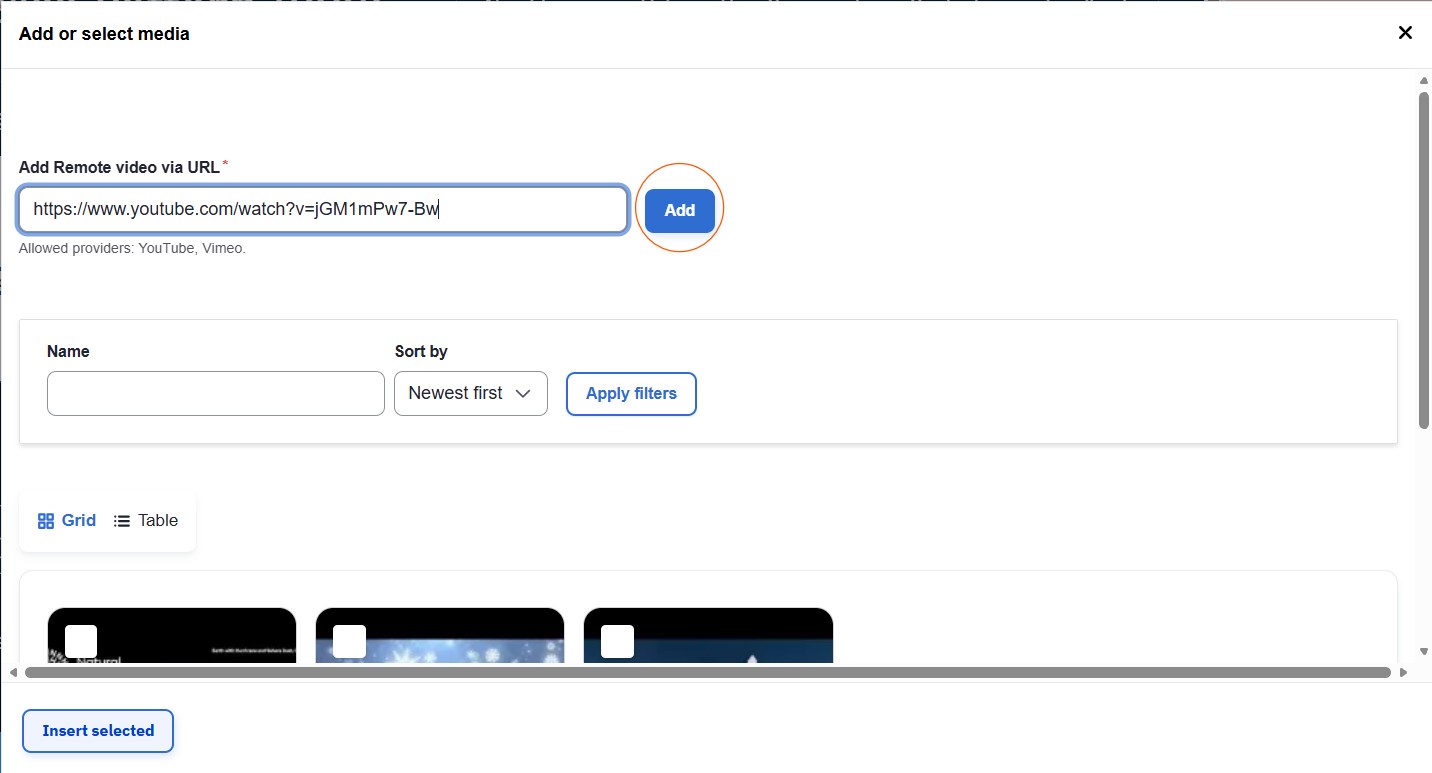 Fig. 2 add video URL for YouTube or Vimeo
Note: the URL needs to be the long version containing /watch?. For example:
https://www.youtube.com/watch?v=0I3A5_NGVZM rather than https://youtu.be/0I3A5_NGVZM
If the URL contains more than one parameter, edit it to use one parameter. For example:
https://www.youtube.com/watch?v=p-zs4lohmYc&list=RDp-zs4lohmYc&start_ra…;
contains two parameters. Edit it to use either https://www.youtube.com/watch?v=p-zs4lohmYc&list=RDp-zs4lohmYc
or https://www.youtube.com/watch?v=p-zs4lohmYc&start_radio=1
Save and insert (Fig. 3)
Image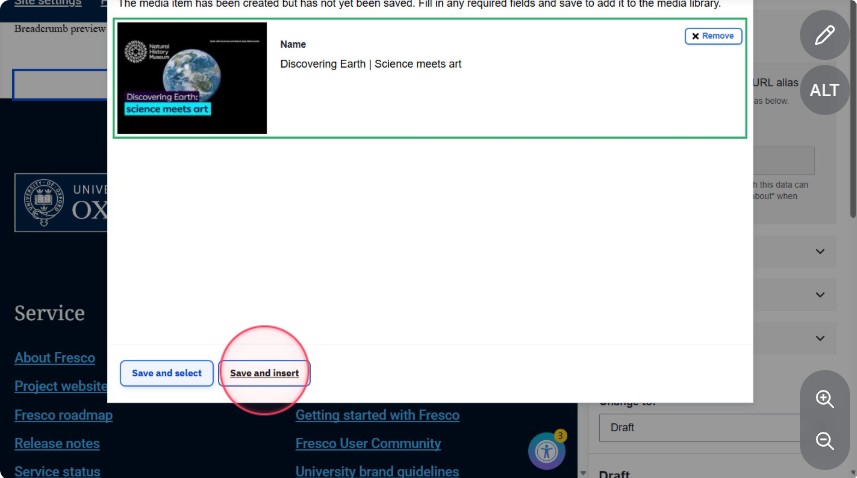 Fig. 3 Save and insert button
Display configuration
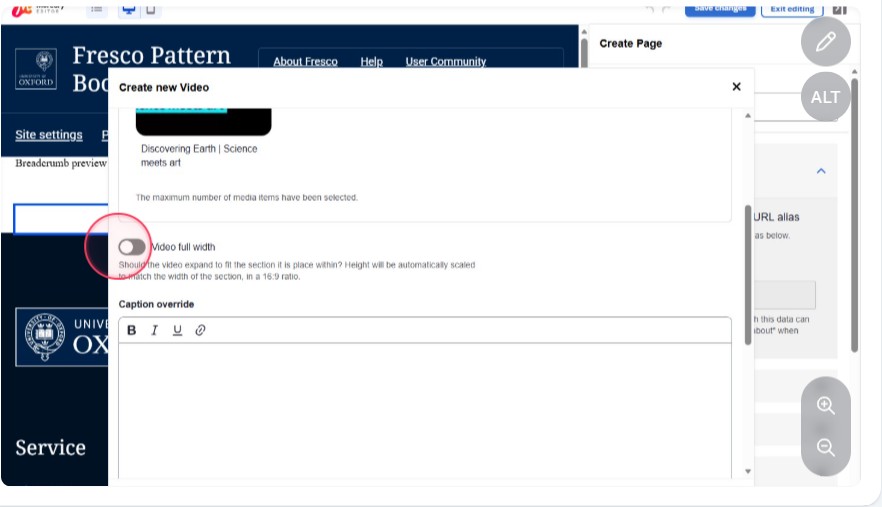
- Optionally toggle Video full width if you want the video to expand to the section width (Fig. 4)
Optionally, specify from what point in the video it should start and/or stop playing (Fig. 5)
Image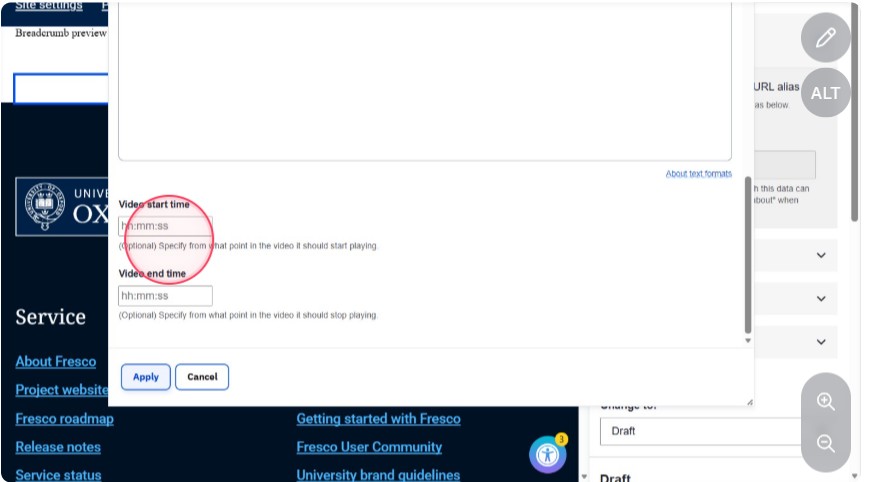 Fig. 5 Optional video start and end time
Preview and saving
- The video iFrame doesn't render in page preview
- Save your draft and exit editing
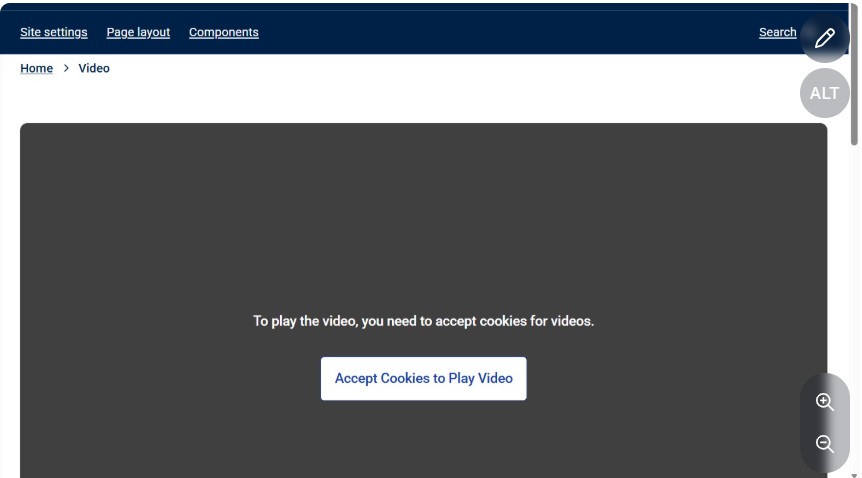
- Video cookies have to be accepted before the video plays (Fig. 6)
Media library
- Embedded videos are listed in the Media library as remote videos
- Videos can also be added independently to the Media library
- Choose a video from the library at the 'Add media' step when adding a Video component
- Click 'Insert selected' to add it to the component
Changes may have been made to enhance this feature since we last updated this page. See What’s new for the latest release information.
Last updated: 13 May 2026