
Shared Content (Beta)
Role: Site Administrator
Shared Content allows you to import pages from other Fresco sites into your own. This imported/shared content is federated based on manageable permissions and dynamically updates to reflect changes made to its source on your site.
Permissions
You are in complete control of which sites can import your content. To grant access:
- Navigate to Content > Shared Content > Approved consumers
- Enter the shortcode for the site you wish to share content with in the Site shortcode field.
- Custom domains must be in the Custom domains for this consumer field
- Click Add consumer
Ref: Fig. 1 in Figure Gallery
Provided your desired content source has listed your site as an Approved consumer, you can add that site to your list of Content sources.
- Navigate to Content > Shared Content > Content sources
- Enter the site shortcode of your desired content source
- Click Add consumer
- Your site must be listed as an Approved consumer on your desired content source to import content
The shortcode entered in Site shortcode fields must be as per the sites Platform URL. Entering Custom domains into Site shortcode fields will not resolve to your site.
For further information on Custom domains and Platform URLs, please review the 'Platform Address vs. Custom domain' section of: Associating a custom domain
Ref: Fig. 1 in Figure Gallery
You can view a list of sites currently configured to import Shared content from your site via the Approved consumers menu.
To access this menu, navigate to Content > Shared content > Approved consumers. This menu will detail:
- The site shortcode
- Expected URL (e.g: https://fresco.site.ox.ac.uk)
- Custom domains
- Displays the custom shortcode
- Expressed as None if not applicable
- Added
- Detailing the date and time the site was added
- Last pull
- Detailing the most recent date and time the site imported a page
- Total requests
- Detailing the total, all-time number of requests for data that site has requested from yours
- Content items pulled
- Detailing the current total number of pages that site has imported from your site
Ref: Fig. 5 in Figure Gallery
Importing content
To import a shared content page:
- Navigate to Content > Shared Content > Browse & import
- Click '- Select a source -'
- A drop down menu will display a list of all your Content sources (sites that have marked you as an Approved consumer)
- Select your Content source
- Click '- Select a channel -'
- Select the content type you wish to import:
- Articles
- Events
- Locations
- Pages
- People
- Select the content type you wish to import:
- Check the box (left-hand side) for the page(s) you wish to import
- Click Import selected
Note: you will not be able to edit imported content unless it is Detached from your site.
Ref: Fig. 2 in Figure Gallery
To manage Imported content:
- Navigate to Content > Shared content > Imported content
This menu informs on the sync status of Imported pages.
- Last refreshed: the date and time of the most recent connection/sync between your site and the content source
- Source last updated: the date and time of the most recent update to the source page, on its source site.
Ref Fig. 3 in Figure Gallery
Within the Imported content menu, you can both Detach and Delete imported content from your site and further manually trigger a Re-sync between your site and the Imported Content source.
- Detach selected from source severs the connection between your site and its source, preventing future syncs. This then moves the imported page to your sites Content menu , allowing you to locally edit the page.
- Delete selected from site: this will both sever the link between your site and its source, preventing future syncs and delete the page from your site.
- Re-synch selected manually prompts a fresh sync between an imported page on your site and it's source.
Ref Fig. 3 in Figure Gallery
Sharing content
To make a page shareable, it must be enabled. To do this:
- Edit the page you wish to become Shared Content
- Within the editor UI (right-hand side) scroll down and locate the Listing setup menu
- Flip the toggle for Share this content to on
This will allow your Approved consumers to import this page, should they wish.
FAQs
Once a site is in your Content sources menu, you can import any page with Share this content toggled on from the source site onto your site via Browse & import and further view all Imported content via the Imported content menu.
Ref: Fig. 3 in Figure Gallery
Should you experience any contradictions between an imported page on your site and its source site: we would advise to first consult the Last refreshed and Source last updated fields.
Ref: Fig. 3 in Figure Gallery
Yes! You can manually Re-sync pages that you believe to be out of date with the source by selecting the page in the Imported content menu and clicking the Re-sync selected button.
Ref Fig. 3 in Figure Gallery
Importing a page to your site will make it conform to your site's theme options. Meaning, specific accent colours selected for certain components on the source site, will inherit the configured accent colour of that component for your site when imported.
For more information, please see: Site colour theme | Fresco Help
If an imported page is in your site's Imported content menu, you cannot edit this page. It receives all edits from the source.
However, selecting Detach selected from source will sever the connection between your site and its source and move the page to your site's Content menu, the same as any other page, which will allow editing.
Note: Detach selected from source will prevent the page from receiving updates made to its source.
Ref Fig. 3 in Figure Gallery
Your site's shortcode will be what is present before the '.site' of the domain. If you see anything not containing '.site' in your browser address bar, you are viewing a custom domain.
- frescohelp.site.ox.ac.uk has a shortcode of frescohelp
For further information on Custom domains and Platform URLs, please review the 'Platform Address vs. Custom domain' section of: Associating a custom domain
Removing a site from your Content sources menu will prevent the page from synching in the future, meaning as the source site is updated, the imported page will remain the same.
Glossary
A site you have given permission to import your shared content
The part of your site's Platform URL immediately before .site and after https://
A list of sites configured for you to import content from
The status of the last update between content imported to your site, and its source site
The origin location of imported content
A website domain that differs from the originally provisioned, '.site' platform domain
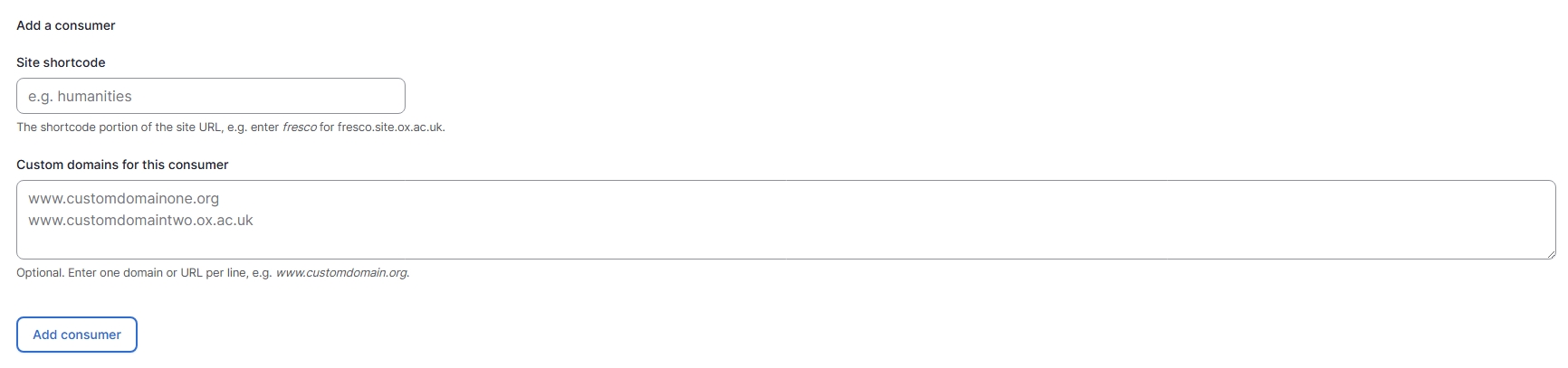
'Site shortcode' and 'Custom domain' fields (Fig. 1)
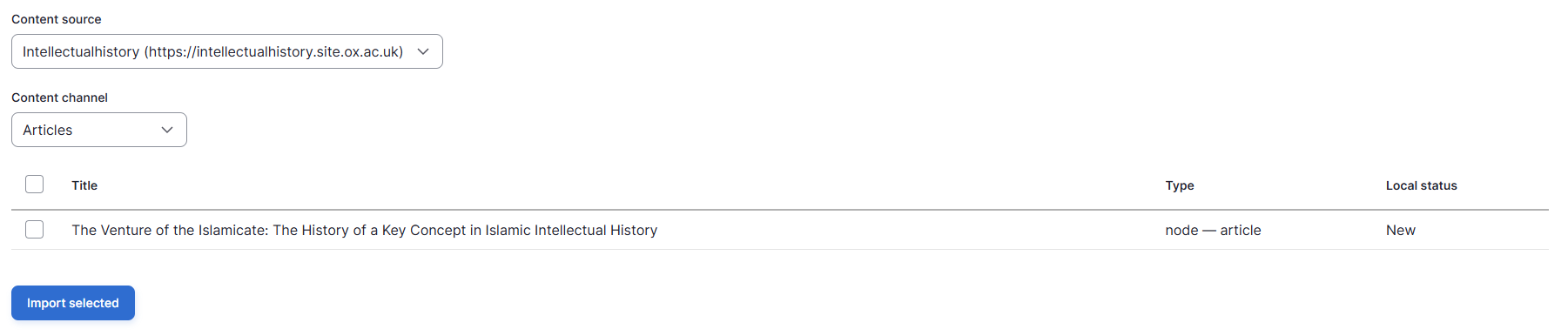
'Browse & Import' menu (Fig. 2)

'Imported content' menu (Fig. 3)

'Shared from this site' menu (Fig. 4)

'Approved consumers' list (Fig. 5)
Changes may have been made to enhance this feature since we last updated this page. See What’s new for the latest release information.
Last updated: 11 September 2026