
Dynamic listings
Role: All editing roles
A dynamic listing is a component that automatically shows content based on the rules you set (called taxonomies), so you don’t need to update the page manually. It automatically displays filtered content, and you can control what appears by using taxonomy terms.
Why use dynamic listings?
Dynamic listings help to:
- Keep content fresh – New items (such as news, events, profiles or themed pages) appear automatically when they match your criteria.
- Save time – No need to edit the list whenever something changes.
- Ensure consistent presentation – Listings use a standard layout and style across your site.
Dynamic listings work best on landing pages and section hubs, but you can use them anywhere you want content to stay up to date without manual edits.
Creating and editing a dynamic listing
Step 1: Add a listing component to a page
- After signing in, open the page you want to edit.
- Locate the spot where you want the dynamic listing and click the blue plus icon to add a new component.
- In the new window, select 'Listing’.
- Buttons are turned off by default
- Under Button options toggle on 'Show buttons', as required
- Buttons can also be toggled on after the component has been added to a page
- Click 'Apply' to insert the listing on the page.
Step 2: Edit the listing component settings
Click on the listing component in the preview window to bring up the edit pane.
On the 'Styles' tab:
- Space between columns: None, Small, Medium, Large
- Anchor link – Add an in-page link for quick navigation.
On the 'Content' tab:
- Control what content appears in the listing and how it's organised. Start with 'Filtering' and 'Sorting options' to get the right content, then adjust the 'Display options' and 'Pager options' for the best user experience.
Choose which content types and terms to include.
- Page type filter – Select the types of content to display:
- Article
- Event
- Location
- Page
- Person
- Filter by terms – Pick specific taxonomy terms to narrow down the results.
- Allow user to filter by – Choose the filters for users (i.e. taxonomy terms) so they can refine the listing themselves.
Set the order in which items appear.
- Sorting mode – Options vary depending on your filters.
Common sort choices include:
- Listing title
- Publication date
- Sort name
Control how the listing looks.
- Display style – Choose a layout:
- Portrait image
- Portrait text only
- Landscape image
- Landscape thumbnail
- Landscape text only
- Max items per row – Select between 1 and 5.
Decide how many items show per page and whether users can navigate through multiple pages.
- Max items per page – Choose between 1 and 50.
- Pager type
- Standard (shows navigation links)
- Off (no paging)
When buttons are toggled off:
- The title on a listing item will gain an underline in the hover state to show users that it is clickable
- Clicking the listing item will navigate to the destination page
You can choose to toggle buttons on after adding the component
- Toggle on 'Show buttons'
Warning is displayed:
Add button text describing the link target. To be accessible this must be unique to each target page. This can be updated in the listing set up of the target page.
Step 3: Create a taxonomy for the listing
Follow the steps to create a taxonomy for the dynamic listing. Taxonomies are essential for dynamic listings because they determine which content appears automatically in a list.
To include content in a dynamic listing, you need to configure the listing setup, details and taxonomy for each page to be included.
- Find a page you want to include in the listing and open it.
- Go to the edit pane and complete the following three sections.
- Repeat these steps for each page you want to include in the listing.
In 'Listing setup' section, add the relevant content to each field. These fields control what information about the page will show in listings:
- Listing title – The title displayed in the listing.
- Listing text – A short description.
No HTML tags allowed. Lines and paragraphs break automatically. Web and email addresses become links automatically. - Listing image – The image shown in the listing.
- Listing button – Optional button for the listing view.
- Button text – The label for the button.
- Note: the default text 'Read more' isn't shown in the Button text field but is rendered on a listing when 'Show buttons' is toggled on for the listing component.
- You need to enter new, unique text in the Button text field to overwrite 'Read more'
- You may have a listing where only certain items require a button to point to a different destination page.
- To prevent 'Read more' displaying by default for a listing item, input <nolink> in the Button link field:
- Note: the default text 'Read more' isn't shown in the Button text field but is rendered on a listing when 'Show buttons' is toggled on for the listing component.
- Button text – The label for the button.
Image
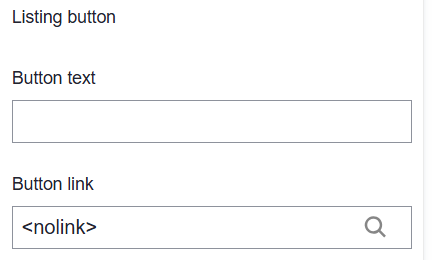
- If you have more than one button on a page:
- To be accessible, button text must be unique to each target page
- Replace the default text 'Read more' to describe the link target in a meaningful way
- Button link – The URL the button points to.
- Sort name – Used for sorting in listings (e.g., for a Person page, use the surname).
This section contains optional metadata that can be included in listings and added to a page using the metadata component.
The fields available in this section vary depending on the page type (there are five page types).
| Article | Event | Location | Page | Person |
|---|---|---|---|---|
Author Publication date Location | Start date End date Custom event date Location URL Link text Email address Phone number Event presenter | Country Organisation Street address Town/City Postal code Map co-ordinates – latitude/longitude URL Link text Phone | N/A - no details for this page type. | Role Job title Affiliation Sort name Email address Phone number Bio Location Social channels |
Taxonomy terms link your page to the dynamic listing.
To include a page in a listing, you must apply the same taxonomy terms you configured in Step 3 above. This ensures consistency and accurate filtering.
For detailed instructions on applying taxonomy terms, see Step 4 Taxonomies page.
Using the component toolbar
Use the Listing component toolbar to:
Image

- move the component up or down the page using the drag handle or arrows
- edit the component settings
- copy the component
- delete the grid from the page.
Changes may have been made to enhance this feature since we last updated this page. See What’s new for the latest release information.
Last updated: 20 April 2026