
Media Gallery
Role: All editing roles
A Media Gallery allows you to showcase a curated collection of images in a visually engaging, interactive format. Each gallery can display up to 15 images, using built‑in navigation controls so users can browse through the collection at their own pace.
When a visitor clicks on an image, it opens in a 'lightbox' view, displaying a larger version of the image along with a caption if one has been added. Captions only appear within this lightbox view, ensuring they don’t clutter the main gallery layout.
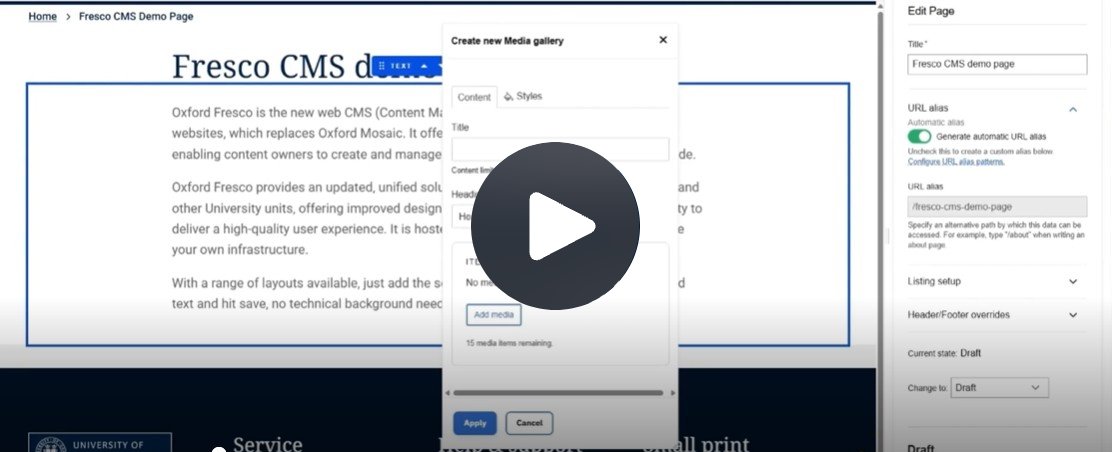
Fig. 1 Still from the video ‘How to create and edit a Media Gallery’. Video length 3:32
Click Fig. 1 image to view the video on SharePoint Online. Available to users who are logged in to our organisation’s intranet
On this page
Related information
Adding a Media Gallery to a page
- After signing in, open the page you want to edit.
- Locate the spot where you want the Media Gallery to appear and click the blue plus icon to add a new component.
- In the new window, select Media Gallery from the list.
- In the next window, add:
- Title (optional) – the heading text that appears above the gallery
- Heading Tag (optional) – the heading level
- Add media (mandatory) – select up to 15 images from the media library
- Click 'Apply' to add the Media Gallery to the page.
Editing the Media Gallery
- Click anywhere on the Media Gallery to open the edit pane.
- On the 'Content' tab, you can:
- Edit the Title
- Edit the Heading Tag
- Edit the images:
- Drag and drop the images into the correct order
- Click ‘Add media’ to add new items
- Click the ‘X’ to remove an item
- On the 'Styles' tab, you can:
- Add an optional anchor link if required
- Click ‘Save’ and ‘Exit editing’ to apply changes.
Using the component toolbar
Click on the Media Gallery to display the component toolbar above it.

From the toolbar, you can:
- Move the component up or down the page using the move icon or arrows.
- Edit the component settings by clicking the pencil icon.
- Copy the component.
- Delete the component using the bin icon.
Changes may have been made to enhance this feature since we last updated this page. See What’s new for the latest release information.
Last updated: 17 July 2026