
Taxonomies
Role: Site Owner, Site Administrator
A taxonomy is a system used to categorise and organise content. It helps group related pages together, making them easier for visitors to find.
A taxonomy consists of:
- Vocabulary – a category used to group similar terms (e.g. People)
- Terms – specific labels within a vocabulary (e.g. Academics, Researchers, Professional Services, etc.)
By tagging content with these labels, you add an extra layer of organisation to your content beyond menus and content types, allowing you to link and classify content across your site.
On this page
Related information
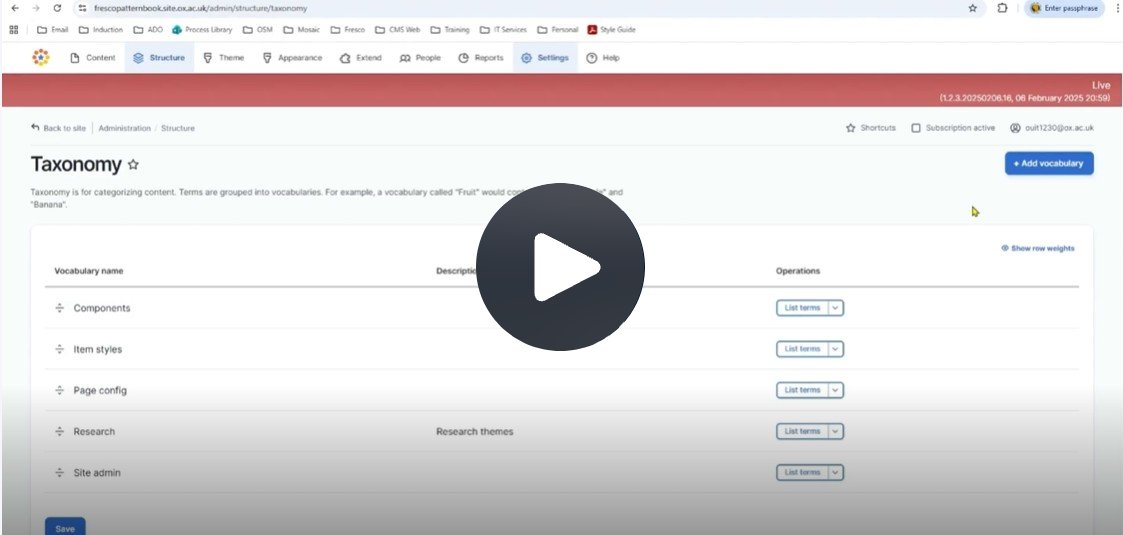
Fig. 1 Still from the video ‘How to set up and use taxonomies’. Video length 5:29
Click Fig. 1 image to view the video on SharePoint Online. Available to users who are logged in to our organisation’s intranet
Why use taxonomies?
Taxonomies provide powerful ways to structure and display content. You can:
- Group content into listings by taxonomy.
- Set up filtering so users can narrow listing results by selecting specific terms.
- Improve navigation by connecting related content together across sections.
- Enable automatic updates for dynamic listings, reducing the need for manual work.
A website can have multiple taxonomies and each taxonomy can include unlimited terms.
You can also apply multiple taxonomy terms to a single page, enabling it to appear in different listings.
Examples of taxonomies
| Example 1 | Example 2 |
|---|---|
Taxonomy
Terms might be:
| Taxonomy
Terms might be:
|
Creating and using taxonomies
- Go to Settings > Taxonomy.
- Click +Add vocabulary to create a taxonomy.
- In the new window, enter the following:
- Name – the taxonomy name, e.g. People
- Description – optional, only visible to you
- Page type - the content types this taxonomy applies to, e.g. Person
- Click ‘Save’.
- Go to Settings > Taxonomy and find the taxonomy you want to edit.
- In the ‘Operations’ column, open the drop-down menu next to ‘List terms’ and select ‘Add terms’.
- In the new window, enter:
- Name – the term name, e.g. Academic, Researchers, Professional Services, etc.
- Description – optional, only visible to you
- Click ‘Save’ to add the term and create another, or click ‘Save and go to list’ if you are finished.
- Review and edit the list of terms:
- Reorganise the terms using the drag-and-drop handles.
- Group terms under a parent term by sliding them under and to the right of the parent.
- Click ‘Save’ when you are done.
Taxonomies are essential for dynamic listings because they determine which content appears automatically in a list.
To apply taxonomy terms to a dynamic listing component:
- Open the page that contains the dynamic listing component.
- Click anywhere on the dynamic listing to open the edit pane.
- In the Filtering options, set:
- Page type filter – choose the content type you want to display, e.g. Person.
- Filter by terms – click in the box to select the taxonomy terms to include, e.g. Academic, Researchers, Professional Services, etc.
- Allow user to filter by – enable users to filter by terms if needed
- In the Sorting options, choose:
- Sorting mode – decide how the content should be ordered
- Save your changes and preview the page to confirm the listing works as expected.
- Open the page you want to tag with a taxonomy term.
- In the edit pane, scroll down and expand the ‘Taxonomy terms’ accordion.
- You will see the taxonomy linked to the page type.
- Example: For a Person page type, the taxonomy might be People.
- Click in the box under the taxonomy name and choose the relevant taxonomy term from the list.
- Example: Academic, Researchers, Professional Services, etc.
- Save the page.
- Repeat for any other pages that need tagging.
Please note, the page must be published for it to appear in a dynamic listing.
Changes may have been made to enhance this feature since we last updated this page. See What’s new for the latest release information.
Last updated: 17 July 2026