
Add a new section
Add a new section on a page, then edit its content and settings. You can re-order, duplicate, or remove sections without affecting the rest of the page.
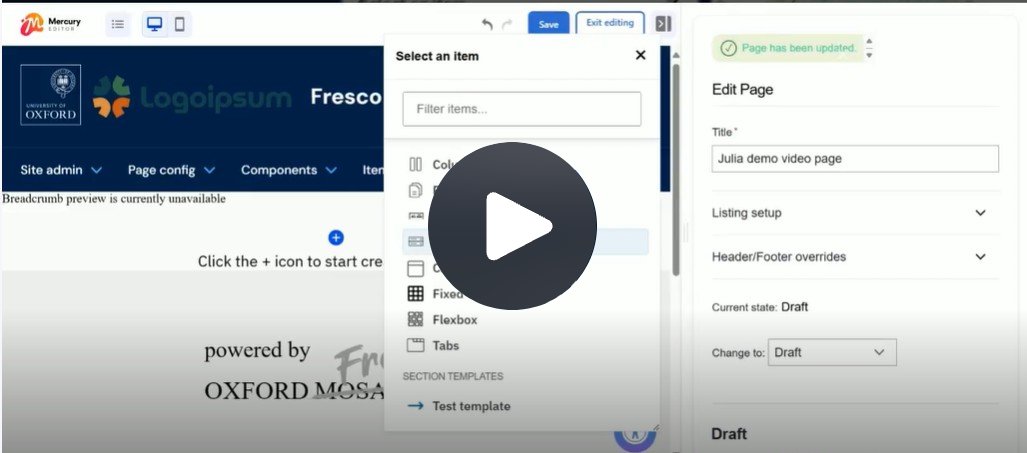
Click Fig. 1 image to view the video on SharePoint Online. Available to users who are logged in to our organisation’s intranet
What is a section?
A section is a block of components and is the starting point to building a page.
Adding a section
On opening a new page, you'll see a blue plus icon advising you to click it to start creating content. Clicking the icon displays a menu of available layout options:
- Columns (this is the most commonly used)
- Tile grid
- Flex box
Selecting 'columns' displays the various layout options. Choose a layout and click Apply.
Editing a section
After adding a section, you can amend it in the Edit pane which automatically opens on the right-hand side of the screen.
For example, changing from a 50:50 column layout to a 100% single-column layout. The page preview will immediately update to reflect changes to the section layouts.
Adding content to a section
The empty section appears on the page after applying your chosen column layout.
Hovering over each region within the layout displays additional blue plus [+] icons. These blue plus icons are used to add components to each region of the section.
Adding additional sections
Add another section above or below an existing one using the plus buttons on the top or bottom border of the section.
You can copy a section to use elsewhere on your page
- Use the duplication icon on the section toolbar. This is circled in yellow in the following image:

You can save a section as a 'Section template' to use elsewhere on your site.
- Use the stamp icon on the section toolbar. This is circled in yellow in the following image:

This will become available in the list of sections available to your page, and can be managed in the Admin ribbon under 'Section templates'
Related information
Changes may have been made to enhance this feature since we last updated this page. See What’s new for the latest release information.
Last updated: 17 July 2026