
Slideshow
Role: All editing roles
Use slideshow as an alternative to a single banner to show a collection of items one slide at a time designed to hook a visitor's interest. Uses of slideshows include breaking news items, featured articles, high-profile events or special lectures, promoting research success or announcing an admissions window is open.
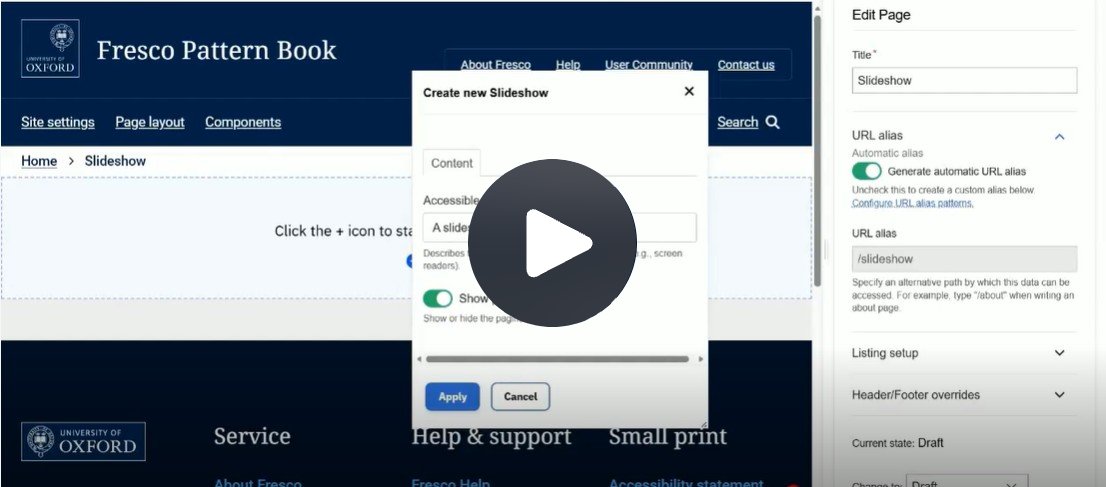
Click Fig. 1 image to view the video on SharePoint Online. Available to users who are logged in to our organisation’s intranet
0:01
Slideshow is a top level content container.
0:05
You begin by adding the section and choosing Slideshow from the section layout options.
0:14
The accessible title is automatically prefilled.
0:18
Show Pagination is also the default.
0:23
These are the slide indicator dots which will appear beneath the Slideshow to indicate how many slides are contained in the Slideshow. And Apply.
0:35
So now for an overview of your empty Slideshow.
0:39
Here are the two slide indicator dots.
0:43
There are two slides by default in a Slideshow, otherwise it would just be a single Banner.
0:51
On the left are the go forward and move back navigation arrows.
0:58
In the centre is an add slide button.
1:01
Slideshows contain a maximum of six slides.
1:07
If you wish to remove any slide, you use the remove button.
1:13
Please note currently you can't reorder slides so be very sure of your order before you begin adding content.
1:23
So now let's add a component to the first slide.
1:28
You can choose from Selected content or Banner.
1:32
Let's use Selected content.
1:37
I'm going to use the default display style of Banner 50/50 image left.
1:44
Now I'm going to search for the Selected content I've already created on this site.
1:54
The heading tag is a title tag and it won't change the font size if you amend this, but it will tell screen readers what the heading setting is.
2:06
This is to comply with accessibility. And Apply.
2:13
So this is my first slide.
2:16
Now I'm going to move to the second slide and add a component.
2:23
This time I'm going to use Banner.
2:28
For consistency I'm going to use the same layout of 50/50 image left and apply.
2:37
Now you begin building your banner as you would in the usual way.
2:42
Select an image, add a heading title.
3:03
Add some teaser text and you can configure a button link to point to the content of interest.
3:19
For now, I'm going to save my changes and exit.
3:30
So here's my Slideshow on the page.
3:34
There is no automatic looping or autoplay.
3:41
Let's edit the Slideshow and add a slide.
4:00
Add a component and Apply.
4:18
Let's navigate back to the 'building news'.
4:23
I've decided I don't want this in my Slideshow anymore so I'm going to remove it and save and exit to see what it looks like on the page.
4:42
So now I have my two slides and I can navigate to the item that I just added.
How to edit
Get started
- Add a new section to your page
- Choose Slideshow from the section layout options
- The accessible title is automatically generated
- Show Pagination (slide indicator dots) is enabled by default
Understand the Slideshow layout
- A slideshow starts with two slides by default
- Slide indicator dots appear below the slideshow to show how many slides are included
- Navigation arrows allow you to move forward and backward between slides
- An Add Slide button appears in the centre below the slideshow
- Use the Remove button located top-right of a slide to delete an unwanted slide
- A slideshow does not autoplay and does not automatically loop
Manage Slides
- A slideshow can contain up to six slides
- Slides are added in sequence and appear in the order created
- Slides cannot be reordered. Plan the slide order carefully before adding content
Add Content to a Slide
- Select a slide and choose Add Component
- Choose between Selected Content or Banner. Default layout for both is Banner 50/50 image left
- Selected Content
- Search for content already created on your site
- Changing the heading tag does not affect visual appearance but ensures correct screen reader behaviour
- Apply
- Banner
- Build the banner in the same way as a standard Fresco banner
- Select an image
- Add a heading title
- Add teaser text
- Configure a button link to direct users to relevant content
Save, review, edit and publish
- Save your changes and exit editing to view the slideshow on a draft page
- Return to Edit the slideshow to add or remove slides
- Use Add Slide to include new content at the end of the existing slideshow
- Remove any slides you no longer want, then save and exit to review the changes
- Repeat the process until you are ready to change the page to Published
Usage advice
- Industry research has shown site visitors tend to look at the first one or two slides only
- There is currently no slide looping so we recommend prioritising your slide order to show the most important or high impact information first
Changes may have been made to enhance this feature since we last updated this page. See What’s new for the latest release information.
Last updated: 17 July 2026