
Page aliases and redirects
Role: Site Administrator, Site Manager
A page has one primary page alias as best-practice to preserve SEO. Use the URL redirect functionality to add a secondary alias which redirects to the primary path or to redirect a page to an external site.
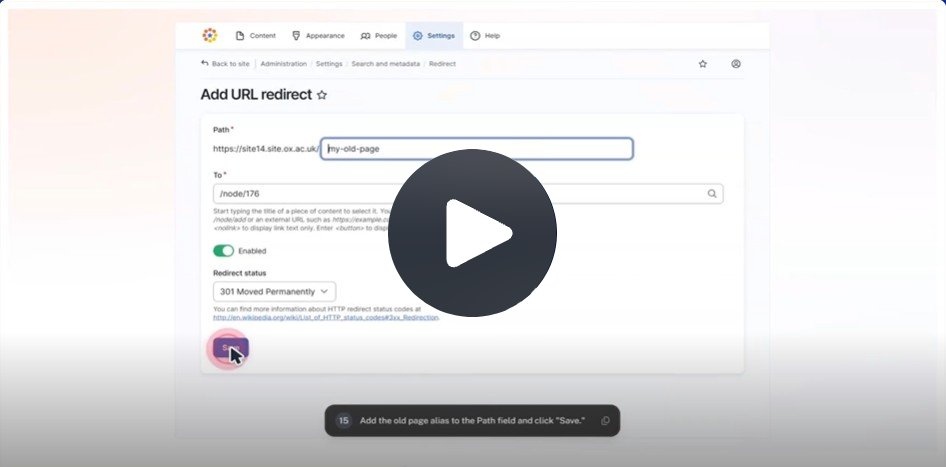
Click Fig. 1 image to view the video on SharePoint Online. Available to users who are logged in to our organisation’s intranet
Related information
00:00
Unpublishing content.
00:03
Navigate to the administration area, for example, this link.
00:07
Click Edit.
00:08
For the page you want to unpublish, go to the Edit pane.
00:15
Select Unpublished.
00:17
From the Status drop down menu, click Save Changes Alias Removal.
00:26
Disable the Generate Automatic URL Alias option.
00:30
Clear the existing URL alias from the field Click Save Changes.
00:43
Click Exit Editing.
00:46
Click Content Redirect Configuration.
00:53
Click Edit.
00:53
For the new destination page, go to Edit pane.
00:58
On the destination page.
01:00
Expand the URL Redirect section.
01:04
Click Add URL Redirect.
01:08
Add the old page alias to the Path field, and click Save.
01:13
Paste the original page alias into the browser's address bar.
01:17
Old page Alias redirects to the new page.
01:21
Open your new page in Edit mode and see the old page alias has been added.
01:26
Under URL Redirects Redirecting to an external site, Open the page you want to redirect.
01:35
Toggle off Generate Automatic URL Alias.
01:39
Clear URL Alias field.
01:43
Change page status to Unpublished.
01:47
Click Save Changes.
01:51
Click Exit Editing.
01:55
Redirect Configuration.
01:58
Go to Settings.
02:01
Click URL Redirects.
02:05
Click Add Redirect.
02:09
Add the page alias you want to redirect to the Path field.
02:14
Paste URL for the destination external site into the to field.
02:22
Click Save Test.
02:26
The redirect works by pasting the old page alias into a new browser tab.
02:31
The page correctly redirects to the external site.
How to edit
Creating at page level
Make the secondary page alias available
- Unpublish the page which uses it
- Go to the Edit pane
- Change Current state to Unpublished
- Expand the 'URL Alias' section
- Disable the 'Generate Automatic URL Alias' option.
- Delete the existing URL alias from the field
- Save and Exit Editing
Add the page alias to your new page
- Expand the 'URL redirects' section
- Click 'Add URL redirect'
- Add the old page alias to the Path field, and click Save
Verify the alias is working correctly
- Paste the original page alias into the browser's address bar
- Old page alias redirects to the new page
- Open your new page in Edit mode and see the old page alias has been added under 'URL redirects'
Creating in Site Settings
- Unpublish the page you want to redirect and delete its page alias
- Go to Settings > URL Redirects
- Check no instances of old page aliases exist for the unpublished page
- Delete any old page aliases
- Click Add Redirect
- Add the page alias you want to redirect to the Path field
- Paste URL for the destination external site into the To field
- Save
Verify the redirect is working correctly
- Paste the old page alias into a new browser tab
- The page correctly redirects to the external site
Usage advice
- Links in the Footer and Menu use system paths and don't automatically redirect
- Update to use the new page node in
- Settings > Header and Footer
- Settings > Menu
Changes may have been made to enhance this feature since we last updated this page. See What’s new for the latest release information.
Last updated: 17 July 2026