
Google Analytics
Role: Site Administrator
Google Analytics links your website to a Measurement ID. Once connected, visitor traffic and engagement data is collected and made available for reporting and analysis within Google Analytics.
Getting Started
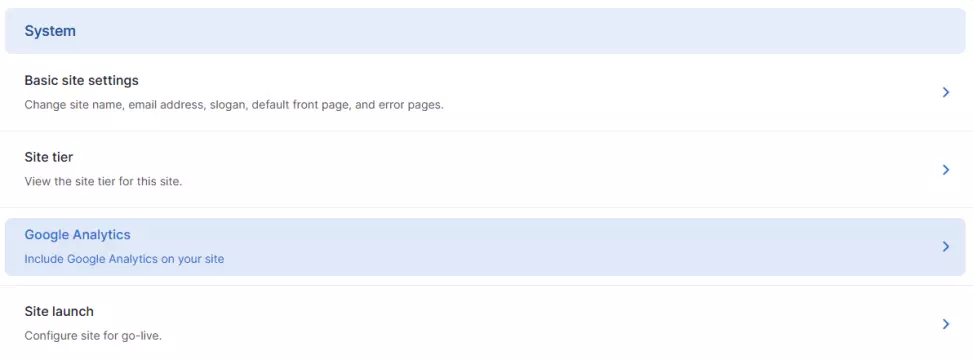
- Navigate to Settings > System > Google Analytics (Fig . 1)
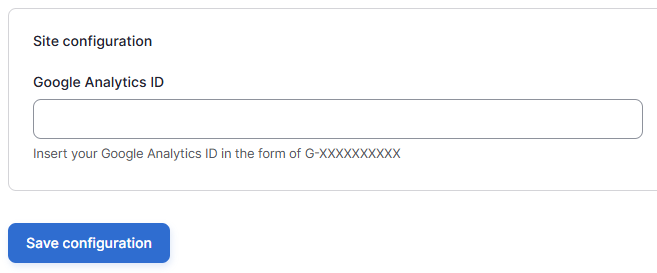
- Enter your Google Analytics Measurement ID (Fig. 2)
- You can find your Google Analytics Measurement ID Here: [GA4] Measurement ID
- Click 'Save Configuration'
Your Google tag will now be inserted into every page of your website automatically, you do not need to add it manually.
Verify the connection
- Open Google Analytics
- Navigate to 'Realtime'
- Visit your website in another browser
- Confirm that your visit appears in Realtime reports
Usage advice
- Check that the Measurement ID is correct
- Allow a few minutes for data to appear
- Ensure your browser is not blocking analytics scripts
Please note that Google Analytics only runs after a visitor has accepted analytics cookies, and stops if that consent is withdrawn. Google Analytics is included in the auto-generated cookies statement when it is enabled for a site. A more detailed explanation about cookies compliance is provided on Getting Started > Cookies
For ongoing Google Analytics support, you can:
Changes may have been made to enhance this feature since we last updated this page. See What’s new for the latest release information.
Last updated: 31 July 2026